by
 *
*
*
*
Please, upgrade to NOTEFILE Version 2.03 as soon as possible!
This version (1.24) and any previous versions of ADDRFILE are no longer supported; except for version 1.24, which is supported only for migration of old ADDRFILE users to NOTEFILE.
| Download Links | Contents | Contact Info and Support | Pricing and Registering |
|---|---|---|---|
 Primary (419 KiB)
Alt. #1 Alt. #2 Alt. #3 |
 ADDRFILE.EXE (version 1.24), ADDRFILE.HLP, ADDRFILE.CNT, README.TXT |
Address: Ataşehir, İstanbul, Turkey. Phone: +90 532 407 8419. Fax: +90 216 688 3074. Email: 
|
Free
(for those who do not want to pay money) For information about which option applies to you, see end of this page. |
| Hashes and Alternative Download Methods | |||
cksum output : 371633501 429443 addrfile.zip md5sum output : a991a1f4aa5d39a09d8316039b826cb3 *addrfile.zip sha1sum output: 67d4cc12a9ad0b736f54aa4106e2af0e526369a6 *addrfile.zip eDonkey link : ed2k://|file|addrfile.zip|429443|e138ae0320a21873f10707274a026f0a|/ |
|||
Single and small .EXE file; no separate .DLL, .VBX, .OCX, etc.
32-bit program that can run under Windows 7 - 11 (64-bit) environment.
Simple and easy to use text editor.
Ability to read .CRD (Windows CardFile) files.
No practical limit on the number and size of cards.
No advertisements, spyware, etc.
Option to compress and/or password-protect (encrypt) the data file.
Automatic backup copy creation of the previous version of the data file.
Option for periodically saving a special copy of the data file (for crash recovery).
Option to save the data file in an alternate location (mirroring).
Export to .TXT (text) files.
Print whole data file or selected card.
Can create Windows shortcut to start program and open a data file automatically.
Can store frequently used searches for doing quick searches.
Ability to update phonebook entries on some mobile phones.
Phone dialer.
Option to start external programs and to launch default mailer and browser from hyperlinks.
Random string (password) generator.
ADDRFILE is a utility that can be used to store personal
address information. For example, you can keep people’s addresses,
phone numbers, e-mail addresses, etc. It is similar to the old Windows
CARDFILE
program and it can read (.CRD) files created by that
program. You can use this program to keep personal notes too, just as
you can use NOTEPAD for this purpose. However, by using
this program, you can organize your data and access any information
you need more easily.
Information is normally stored in CSV format, so you can import files created by ADDRFILE to other programs, such as Microsoft Excel. You can save to and read from TXT files also. You can optionally encrypt and/or compress your CSV files.
Using ADDRFILE, you can read and update phonebook entries of your mobile phone using Serial, USB, Bluetooth, or Infrared (IrDA) connection to your PC. Sony Ericsson, Nokia, Motorola, and Siemens mobile phones are known to work with ADDRFILE.
ADDRFILE has an integrated phone dialer similar to, but better than the one in CARDFILE. Another useful feature is the ability to execute system commands stored in your data file.
This program was written mainly to overcome some limitations of CARDFILE. For example, in CARDFILE the size of card cannot be larger than 12×40 characters including the index line. In ADDRFILE there is no such limitation. The main philosophy behind this program is its simplicity and easiness of use.
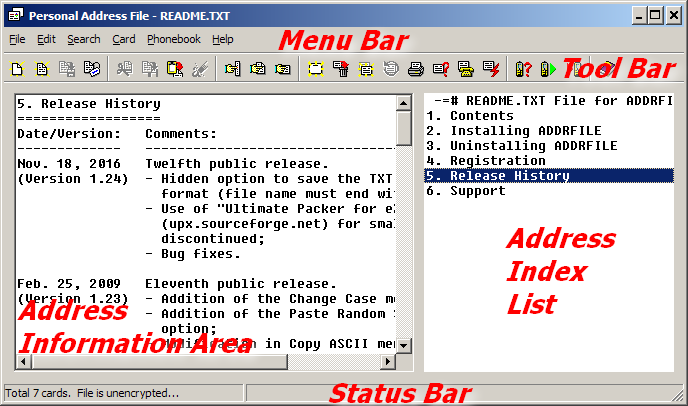
ADDRFILE runs on 32- and 64-bit Microsoft Windows environments (such as Windows 95, 98, ME, NT, 2000, XP, 2003, Vista, 2008, 7, 10, or 11). It gets an optional parameter indicating the address file to be opened and edited. The window displayed when you run the application contains a menu bar at the top, a status bar at the bottom, a card index list at the right, and a multiline edit box at the left. The text displayed within the edit box at the left is related to the card selected from the index list at the right. The index value of a card is the first line of the card data. When you start with an empty address file, the first thing you must do is to add a new card and then edit the contents of this card. Then you need to save your address file to disk.
To install
the program, unzip the file you downloaded
into an empty directory and create a shortcut to the executable file.
The program name in the shortcut may be followed by the path name of
the address file to be edited. If you have more than one address file,
then you can create multiple shortcuts.
To uninstall the program, delete the directory containing the program files, any shortcuts, and data files you created, and the branch HKEY_CURRENT_USER\SOFTWARE\FedSoft\AddrFile from your registry.
For more information, refer to the associated ADDRFILE.HLP and README.TXT files which can be found in the .ZIP file.
CompanyInformation
What is FedSoft? FedSoft is a
fictitious company. I do not own a company, nor do I plan to own one.
However, any Windows software which uses the Windows
Registry needs to specify a company and a product name under the key
HKEY_CURRENT_USER\SOFTWARE or
HKEY_LOCAL_MACHINE\SOFTWARE. For this purpose
I invented the name FedSoft
and this name remained as the
name of the company developing this software. For more information about
me (=FedSoft), please have a look at my CV.
Is this software freeware or shareware? ADDRFILE is freeware for those who cannot afford to pay money for personal usage of such a program. However, those who can afford to pay 10 USD or those who want to use this program in a commercial environment need to get a valid and permanent licence.
What does this mean? This means that you have two options:
purchaseseveral licences according to the table below:
| Number of systems: | Licences to buy: |
|---|---|
| 1 * | 1 (donate: 10 USD) |
| 2-5 | 2 (donate: 20 USD) |
| 6-25 | 3 (donate: 30 USD) |
| 26-125 | 4 (donate: 40 USD) |
| unlimited | 5 (donate: 50 USD) |
* Note that, for personal usage of this program in two different (like home and office) computers, one licence is enough.
For more information, refer to the help topic for the Registration command in the Help file (ADDRFILE.HLP).
Please, click on the topic you are interested below:
ADDRFILE is a 32-bit program, so you should be able to run it on any 32 or 64-bit version of Windows, including Vista and Windows 7. ADDRFILE has been tested and seen to work without problems on newer versions of Windows; it can open *.CRD files, *.TXT files, and native *.CSV files without problem under Windows 7. Since, ADDRFILE is a simple utility; there is no plan to release a 64-bit version of it. Instead, you should upgrade to NOTEFILE (i.e., next version of ADDRFILE) now!
ADDRFILE uses the old Windows Help system which is not
directly supported on Windows versions later than XP. When you try to get help about
ADDRFILE, probably you will be directed to the following page:
Error opening Help in Windows-based programs:
Feature not included
or Help not supported
.
Please read the instructions on this page carefully and download and install the file
(WinHlp32.exe) relevant to your Windows version. After that, you should be able
to get help about ADDRFILE, either using the help menu or by pressing F1 key while
in ADDRFILE.
ADDRFILE was written using a Windows development environment and it
uses some Windows-specific libraries. So, it is practically impossible to port
ADDRFILE to Linux without a complete re-write and there is no plan
for this. I have tested and run
ADDRFILE under Linux using the Windows Emulation layer
(WINE)
provided on most Linux versions. With some minor visual defects (e.g. the
Status Bar is not displayed), I expect ADDRFILE to run properly under
WINE. However, since it runs over a compatibility layer,
it is much
slower. You can easily test and make your own judgment. Just copy the
ADDRFILE.EXE file to a Linux machine or download it from
this page (and provided the WINE
package is installed on your machine) run the exe file.
For a native Linux version, please, upgrade to NOTEFILE (i.e., next version of ADDRFILE) now!
Since an address file is stored in CSV format, you can easily edit a file created by ADDRFILE or import it into other programs, like Microsoft Excel (provided that you save your address file uncompressed and unencrypted). That way you can do some operations not supported by ADDRFILE. For example:
C:\ADDRFILE> COPY file1.csv+file2.csv merge.csvThere is an autosave file with the same name. Do you want to open that file instead?when I try to open a CSV file?
The automatic save feature of ADDRFILE is for periodically storing a copy of the address
file being edited to a temporary file in CSV format. Note that, if the CSV file has a password, then
the temporary file will be stored in encrypted form also. The autosave file is saved in the same
directory and with the same name of the CSV file, but the extension is $$$ instead of
CSV. In case your computer crashes while ADDRFILE is running, the autosave
file will probably contain more recent data than your CSV file. You can recover the data saved by
the automatic save feature when you try to open the original file. When you open a file,
ADDRFILE checks to see if there is a file with the same name, but with $$$
extension. If it is so, you are given the option to open that file instead:
There is an autosave file with the same name. Do you want to open that file instead?
If you want to keep the contents of this (autosave) file, you must save it immediately over the original or a new file. Please note that, you will get the same message when you accidentally try to run a second copy of ADDRFILE and try to open a file which is already open on the other copy of ADDRFILE. For more information, please refer to the Help file (the File Setup... and Open... command).
You may open multiple instances of the Personal Address File program. Be careful not to open the same address file multiple times, since this may cause some (un)predictable results.
There is no reason why you can’t use ADDRFILE from a CD, floppy, or USB (mobile) disk. You can store ADDRFILE.EXE, your data file, or both on a removable medium. But, note that if you store your data file on a slow or read-only removable medium, you may wish to disable the automatic save feature of ADDRFILE. To do this go to File | Setup... and set Auto save every 0 minutes.
Personal Address File uses a proprietary encryption algorithm. There is a low probability of being targeted by attackers. The password you enter in the File Setup dialog box is used for both encrypting and decrypting the file. If you forget the password of a file, the only way to recover it is by trial and error. This can be automated, i.e., every possible character combination may be tried until the correct password is found, but the author of this program has no intention to develop such a program and make it public. For this reason, try not to forget the file password. For maximum security choose long and complex passwords.
For people who cannot remember their passwords, the following can be suggested:
Personal Address File does not automatically execute any code in the CSV or TXT file, so it is not possible to create and spread viruses with Personal Address File documents. However, the manual command execution may be a security risk. So you are advised to disable this option if you are not planning to use it. This can be done by using the Setup... command from the File menu.
ADDRFILE data is stored in Comma Separated Values files (files with CSV extension). The files with BAK extension are for backup purposes (in case you might want to revert to the previously saved version). It is enough to archive only the CSV files. However, just for having two versions (the current one and the previously saved one) you can back up also the BAK files. The ADDRFILE.EXE executable and the associated help files can always be downloaded from its Web page.
When you open a normal TXT file, ADDRFILE uses the first character in
the first line as the Card Separator Character (for more detailed information see
File | Setup... command), so that subsequent lines starting with this character
are put in different cards. For an example, look at the README.TXT file coming with the
ADDRFILE.ZIP file; it uses
as the Card Separator Character.[
Note that there is no Modify Card command in ADDRFILE; the card you modified (including its index line) is updated automatically when you switch to another card. So, if you want to modify the index line of a card (and as a result, its position in the Address Index List) just select the card you want to modify and change the first line in the Address Information Area; then, to update the Address Index List, switch to another card or click at the same card in the Address Index List.
Before version 1.21: You have to delete them from the Windows Registry.
Close any instances of ADDRFILE running. Run REGEDIT and go to the key
\HKEY_CURRENT_USER\SOFTWARE\FedSoft\AddrFile. Then delete any of the four keys
File1, File2, File3, or File4 having the values you do not want.
Restart ADDRFILE and check the File menu. The usual Registry editing
warnings apply; if you delete something important from the Windows
Registry by mistake, you may make your Windows unusable!
In version 1.21 and above: From the File menu just select Clear Recent. All file names will be removed from the File menu.
There is no limit on the CSV file itself. However, a 32 KByte limit per card is imposed to prevent some problems.
There is no functional difference in the software. However, a freely obtained licence is only for personal usage and the registration code you get is valid only for the current PC. If you change your PC or your operating system, you will need to register again. Otherwise you will get the This program is not licensed! warning. A permanent licence, on the other hand, is tied to your name and not to your PC. You can use the same code even if you change PCs or operating systems. You can also get a licence for more than one user by applying for a site licence.
When you register your copy of ADDRFILE by getting a free licence, the message displayed on the Help | Registration... window is something like this: Licensed to Your Name. When you purchase a permanent licence and enter the code to the program, the message changes to this: Licensed permanently to Your Name.
ADDRFILE currently uses Courier New 10pt for printing. This is hard coded in the program. I will consider making this more flexible in the future.
It is true that there is no such facility in ADDRFILE right now. But you can use the following method:
Presently you cannot do these from within ADDRFILE. However you can do the following:
Text File (*.TXT)from Save as type.
Before version 1.22: This is a known problem. It occurs only if you save your file
while the window is maximized. Click on the Restore button so that the button on the
left of × (Close button) becomes a square, and then move and resize the
window as you wish. Do some modifications in your data, so that ADDRFILE will
allow you to save your file. Do File | Save to save the new settings. Close
ADDRFILE and then reopen it. Now try again to maximize and restore. It should work.
To avoid this problem, do not save your file while the ADDRFILE window is maximized.
ADDRFILE will save these co-ordinates as its normal
window size, so that
when you later try to restore the window it will still occupy the whole screen.
In version 1.22 and above: The window state and the restored
window co-ordinates will be saved in your CSV file, so that this problem will not occur.
Apart from the default window co-ordinates, ADDRFILE stores the specific window co-ordinates for each CSV file in the CSV file itself. However these are not updated unless you make changes in the data and you save the CSV file. To solve this problem do this:
If you have problems with the above procedure try this:
WindowState=...,ClientHeight=...,ClientWidth=...,Top=...,Left=...,If this does not solve the problem, or ADDRFILE opens with a very small window,
you will have to delete the whole
[HKEY_CURRENT_USER\Software\FedSoft\AddrFile] tree from your
Windows Registry.
The index window can only be resized by putting the mouse pointer between the index and the
information area window and dragging the mouse left or right. The window sizes are stored in your
data file. If you open a new data file (using File | New), the window will start
with default values. The only way to resize the window would be to close ADDRFILE and
edit your data file (.CSV file) with a text editor like NOTEPAD.
Look for the
value on the first line of your data file.
Decrease the value after the CardWidth=
sign (it is in number of pixels).=
This may be a temporary problem. Please go to your favorite search engine and search for
fedon kadifeli addrfile -site:kadifeli.com
.
You should be able to find several backup pages. If you wish, you can contact
me
to report the problem.
Please, be careful about sites that distribute malware!